4 posts tagged with "AWS"

View All Tags

Which load balancer is best for microservices on AWS EKS?

· 2 min read

banner

Short answer up front:

* Use ALB (AWS Application Load Balancer) at the edge for almost all HTTP/HTTPS microservices workloads. It gives host/path routing, TLS offload, WebACL/WAF, and better request-level features that microservices typically need.

* Use NLB only when you need true L4 passthrough, extremely low latency very high connection scale, UDP/TCP workloads, or when preserving source IP is critical and simpler setup is preferred.

* Hybrid (ALB at edge + internal NLB) is a great compromise when you need ALB features at the edge but want NLB performance for specific internal high-throughput services.

Why microservices usually favour ALB ?

Microservices architectures typically expose many small HTTP/HTTPS services, use host- and path-based routing (e.g., api.example.com/users, api.example.com/payments), use TLS, and often require features like:

— per-host routing (virtual hosts)
 — path-based routing and rewriting
 — TLS termination with ACM and easy certificate management
 — Web Application Firewall (WAF) protections at the edge
 — HTTP features: websockets, HTTP/2, header manipulation, redirect rules
easy integration with Gateway API for Kubernetes-native routing
ALB provides all of these natively.

When to pick NLB instead?

Pick NLB when one of the following is true:

— Your services are TCP/UDP (non-HTTP) or need pure L4 passthrough. Examples: raw TCP proxies, some legacy protocols, high-volume TCP streaming.

— You need lowest possible latency and the highest concurrent connection scale (NLB is optimized for L4).

— You want simple Service annotation deployment without installing AWS Load Balancer Controller (fast setup).

— You want to preserve source client IP easily and reliably for backend services.

NLB is simpler for L4 and usually cheaper for pure throughput scenarios, but it lacks L7 routing and WAF.

image


👉 Originally published on Medium: Read more
Getting credentials: exec: executable aws failed with exit code 255

· 2 min read

banner

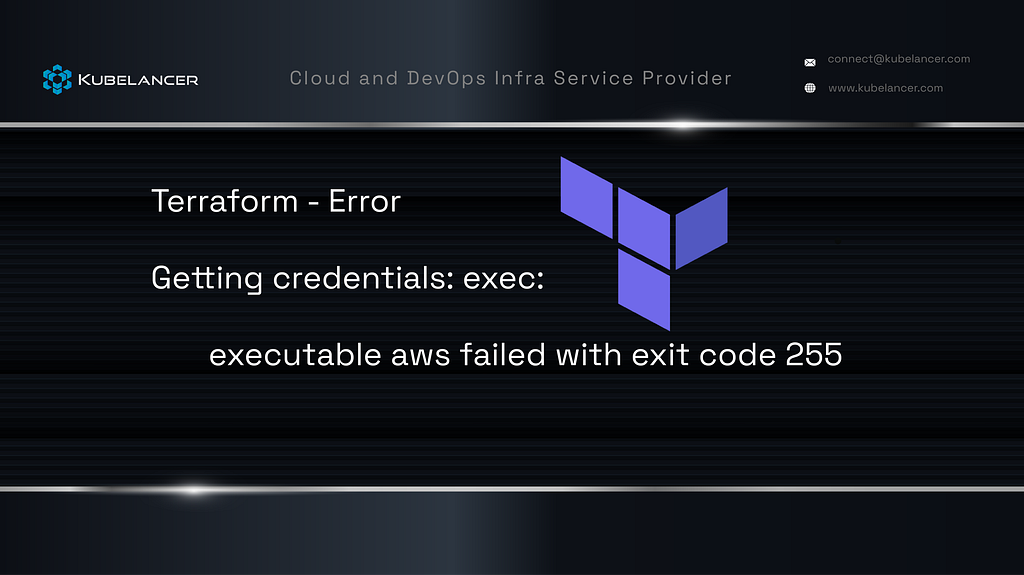
Error: failed to create kubernetes rest client for read of resource: Get “https://xxxxxxx.gr7.us-east-1.eks.amazonaws.com/api?timeout=32s": getting credentials: exec: executable aws failed with exit code 255

Most Terraform users might have seen this 255 error. Suddenly, for some reason, Terraform will surprise us specifically in AWS.

Let’s break down exactly what’s happening:

The problem is mostly with Terraform; try using your local kubeconfig to connect to EKS.

What happened generally?

kubernetes/kubectl/helm provider execute aws eks get-token to get a short-lived authentication token, but it can’t get it due to a few reasons

No Kubernetes REST client could be created

  1. could be an issue on AWS credentials
  2. If CI/CD, credential env not set correctly/wrongly
  3. Your ~/.aws/config or ~/.aws/credentials is missing or invalid.

Let’s Troubleshoot

Try this in your shell:

aws eks get-token --cluster-name your-cluster-name

If this fails, you’ll get a clearer error.

In my case, it worked. Next, I did If you’re using profiles, set:

export_ AWS\_PROFILE=your-profile

export_ AWS_PROFILE=kubelancer-dev

which solved.

then try

terraform plan  
terraform apply

image


👉 Originally published on Medium: Read more
Optimizing AWS EKS with Karpenter: A Hybrid Instance Strategy

· 3 min read

banner

As Kubernetes adoption grows, so does the complexity of managing clusters efficiently. One common challenge is choosing the right EC2 instance types that balance performance, cost, and availability. Enter Karpenter, AWS’s open-source cluster autoscaler, designed to simplify and optimize Kubernetes infrastructure provisioning.

In this blog post, How Kubelancer, we implemented hybrid instance strategy using Karpenter on AWS EKS Cluster for our esteemed client, ton maximize performance while minimizing costs in production, if non-prod can think about spot fleet.

Generally, Karpenter addresses these challenges:

1. Rapid provisioning: Instantly launching nodes when needed.

2. Cost optimization: Choosing the most cost-effective instance types.

3. Workload-aware scaling: Allocating resources based on real-time workload requirements.

4. Support for Spot Instances: Reducing costs further by leveraging EC2 Spot Instances.

But how can we unlock its full potential? Hybrid instance strategies hold the key.

The Challenge: Cost vs. Performance in Kubernetes

Kubernetes workloads vary in their resource requirements. Some applications are CPU-intensive, requiring high compute power, while others are memory-heavy, needing more RAM to function efficiently. If you stick to a single instance type, you may either:

  1. Over-provision of resources, leading to wasted costs.
  2. Under-provision resources, resulting in performance issues.

Let us Understanding Hybrid Instance Strategies

A hybrid instance strategy involves mixing different EC2 instance families based on workload needs. For example:

  • Compute-optimized instances (c7i.large): Ideal for CPU-heavy applications.
  • General-purpose instances (m7i.large): Perfect for balanced workloads requiring a blend of CPU and memory.

By blending these instances, you avoid over-provisioning and ensure that each workload gets precisely the resources it needs.

Our Workload Analysis: (example 3 microservices)

Imagine managing three critical microservices in an EKS cluster:

1. service-order

CPU Usage: High (1819m per pod)

Memory Usage: Low (~1.3 GiB per pod)

Best Fit: c7i.large for compute efficiency.

2. service-user

CPU Usage: Moderate (1830m per pod)

Memory Usage: Moderate (~2.4 GiB per pod)

Best Fit: c7i.large to optimize for CPU-bound processes.

3. service-search

CPU Usage: High (1805m per pod)

Memory Usage: Moderate (~3.7 GiB per pod)

Best Fit: m7i.large for a balanced approach.

Why did Kubelancer, chose the Hybrid Approach Works?

By mixing c7i.large and m7i.large instances, we will:

  1. Reduce Costs: Compute-optimized instances are cheaper for CPU-heavy tasks.
  2. Right-Size Resources: Memory-heavy applications get more memory-rich instances without wasting CPU capacity.
  3. Ensure High Availability: Multiple instance types provide fault tolerance and flexibility during provisioning.

Performance & Cost Results

After we implemented this hybrid strategy:

  • Resource Efficiency: Workloads are provisioned based on exact resource needs.
  • Cost Savings: Reduced over-provisioning leads to lower monthly bills.
  • Performance Gains: High CPU workloads get dedicated compute-optimized nodes.
  • Flexibility: Karpenter’s dynamic scaling ensures adaptability to traffic spikes.

Karpenter, Every DevOps Engineer Infra Game Changer:

After we implemented the Hybrid Instance Strategy for AWS EKS powered by Karpenter, it is a game-changer for our microservices cloud-native applications. we achieved cost savings, better resource utilisation, and enhanced performance.

N‍ext Blog, Let us see how to implement….

image


👉 Originally published on Medium: Read more
Create AWS EKS Cluster — eksctl

· 4 min read

banner

Create AWS EKS Cluster — eksctl

Creating Kubenetes cluster in AWS have multiple options like using AWS SDK, Terraform, Cloudformation and easy and quick for new learner using AWS Console. In this blog we going see another well know method of creating AWS EKS cluster using “eksctl” command by using as YAML configuration in default VPC. ( Same can be create by CLI command).

Let’s get start

Prerequisites:

Let install these binary one by one

  1. AWS CLI
  2. eksctl CLI
  3. kubectl

Step 1. Install AWS CLI (Mac OS)

Download AWS CLI binary

curl "https://awscli.amazonaws.com/AWSCLIV2.pkg" -o "AWSCLIV2.pkg"

image

Install AWS CLI

sudo installer -pkg ./AWSCLIV2.pkg -target /

image

Verify the installation

which aws  
aws --version

image

Step 2. Configure AWS CLI

Step 2.1. Login to AWS console as root user

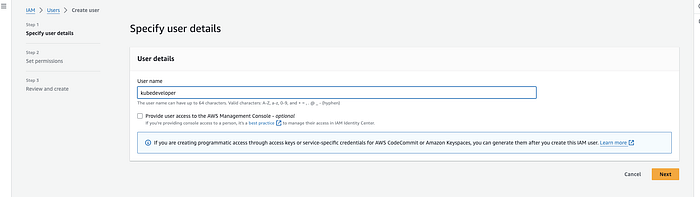
Step 2.2. Create IAM user

username: kubedeveloper

No AWS console access, Only programmatic access

image

Provide Username

image

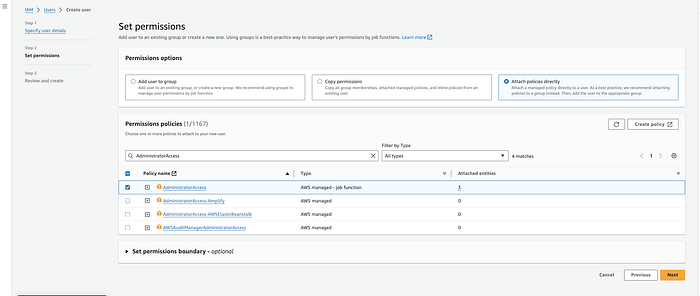
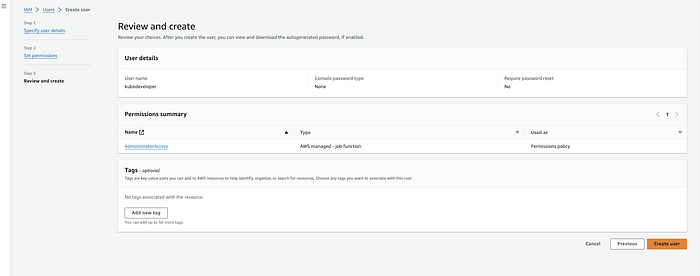
Permission as per User Type

image

Create Access and SecretAccessKey

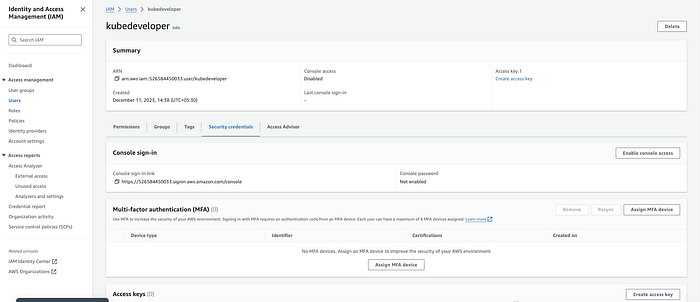
Step 2.3 Select the IAM user “kubedeveloper”

Step 2.4 Navigate to Security Credentials

image

Step 2.5. Click Create access key

image

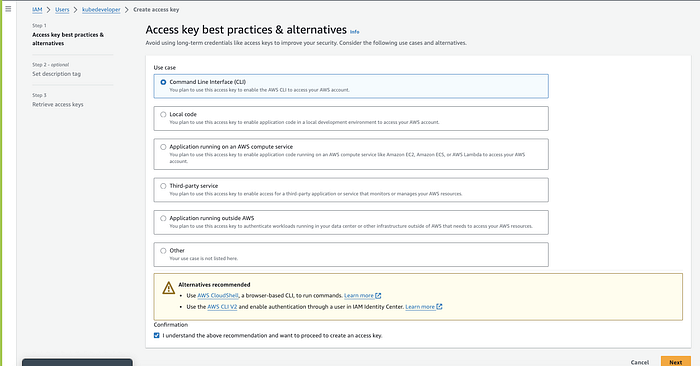
Step 2.6 Select Use case :

Command Line Interface (CLI) & check the Confirmation

image

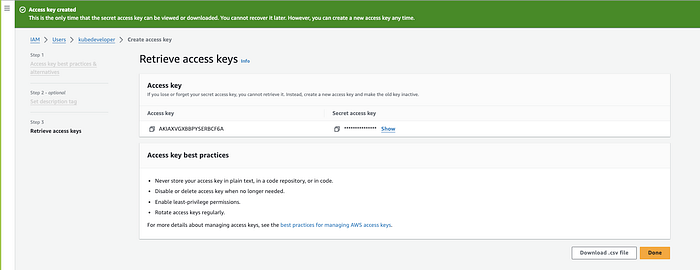
Step 2.7. Set description tag — optional and Click create

image

Now we got AccessKey and SecretAccessKey,

Next, Let configure AWS CLI on Mac OS command line

Note: if multiple aws account configured, use — profile

$ aws configure

image

Validate AWS CLI Access

Run any aws command to list resources

Here eg: To list s3 buckets on my AWS account

bala@kubelancer Downloads % aws s3 ls

Getting output, which denoted AWS access has been configured correctly

bala@kubelancer Downloads % aws s3 ls  
2022-12-13 21:36:02 firehose-backup-05bf6840

Install eksctl on Mac OS

To download the latest release, run on Mac OS (arm64 architecture):

curl -sLO "https://github.com/eksctl-io/eksctl/releases/latest/download/eksctl\_Darwin\_arm64.tar.gz"  
tar -xzvf eksctl\_Darwin\_arm64.tar.gz
sudo mv ./eksctl /usr/local/bin

Ref: https://www.weave.works/oss/eksctl/

Step 3: Creating an AWS EKS Kubernetes Cluster using eksctl tool

3.1. Create Cluster configuration yaml file

$ vi cluster-config.yaml
apiVersion: eksctl.io/v1alpha5  
kind: ClusterConfig

metadata:
name: kubelancer-cluster-1
region: us-east-1

nodeGroups:
- name: ng-1
instanceType: t4g.medium
desiredCapacity: 2
volumeSize: 20
ssh:
allow: false

3.2 Let’s create eks cluster on aws using eksctl command

$ eksctl create cluster -f cluster-config.yaml

image

Cluster created successfully

Note: if multiple aws account configured, use — profile

Get the cluster name by using eksctl command

eksctl interact with AWS API and get the required details from AWS cloud

$ eksctl get cluster --profile kubedev

image

Use the following command to get update kube-config.

$ aws eks update-kubeconfig --name=kubelancer-cluster-1 --region=us-east-1

Verify the Cluster

kubectl get nodes

image

Cluster Node Status

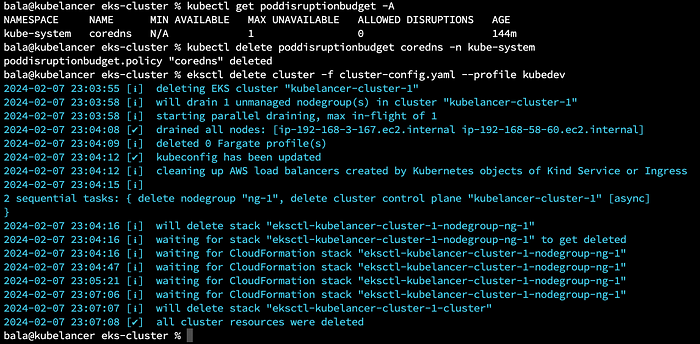
Delete Cluster

$ kubectl get poddisruptionbudget -A  
$ kubectl delete poddisruptionbudget coredns -n kube-system
$ eksctl delete cluster -f cluster-config.yaml --profile kubedev

image

Happy Computing :)

image


👉 Originally published on Medium: Read more